
Setting up a MikroTik router can feel confusing at first, especially if you are new to RouterOS. The good news is that the hAP be lite follows a fairly simple first-time setup process, and once it is configured, it gives you a powerful Wi‑Fi 7 network with advanced control.
Why this setup matters
Many users want a router that is fast, flexible, and reliable without needing a complicated installation. The hAP be lite solves that by combining Wi‑Fi 7, a 2.5G Ethernet port, three Gigabit ports, and RouterOS v7 in one compact device. That means you can use it for a home network, small office, or advanced lab setup.
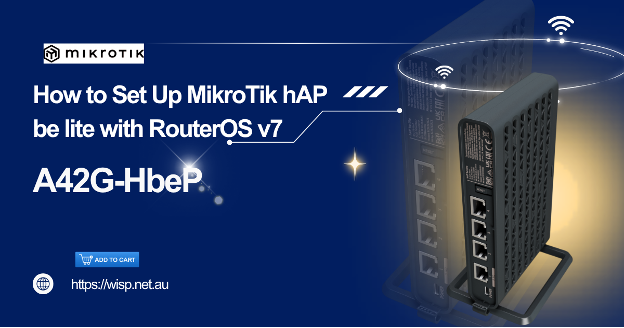
Step 1: Connect the router correctly
Start by plugging your ISP cable into ether1, which is the WAN port on the hAP be lite. Then connect your laptop or PC to one of the other Ethernet ports, or join the router’s default wireless network if you want to configure it over Wi‑Fi. Power the device with USB-C and wait for it to finish starting up.
Step 2: Log in to RouterOS
Open WinBox, WebFig, or the MikroTik app to access the router. If you cannot reach it by IP, use WinBox neighbor discovery and connect by MAC address. On many MikroTik devices, the default login is admin with a blank password, though the exact behavior may vary by unit or preconfigured setup.
Step 3: Use QuickSet for easy setup
For a basic home setup, use QuickSet instead of manual configuration. Set your internet type, wireless name, wireless password, and router password, then apply the changes. This is the easiest way to get online quickly without digging through advanced menus.
Step 4: Make sure the internet works
After QuickSet, check that the router gets a valid WAN address from your ISP. If your ISP uses DHCP, the connection should come up automatically; if it uses PPPoE or a static IP, you may need to enter those details manually. Test internet access from a phone or laptop to confirm both Wi‑Fi and wired connections are working.
Step 5: Update RouterOS v7
Once the router is online, check for the latest RouterOS v7 updates and reboot after installation. Keeping the router updated helps improve security and stability. If you plan to use the device for business or long-term home networking, this step is important before you rely on it daily.
Step 6: Secure the router
Change the default admin password immediately after setup. It is also smart to rename the Wi‑Fi network, disable unused services, and review firewall settings if you want better protection. These small steps help prevent unauthorised access and keep the network safer.
Common problems and fixes
If you cannot access the router, try another browser, another Ethernet port, or WinBox MAC login. If the internet is not working, recheck the WAN cable on ether1 and confirm your ISP credentials or IP settings. If Wi‑Fi is visible but slow or unstable, update RouterOS and verify the wireless password and country settings in QuickSet.
The MikroTik hAP be lite is a strong choice if you want modern Wi‑Fi 7 performance with RouterOS flexibility. Once you complete the initial setup, it can serve as a reliable router, access point, or small-office gateway with far more control than a typical consumer router.